How to Create an Image for Your AI Assistant
Your AI assistant doesn’t need a face to function—but giving it a visual identity makes it feel more real, branded, and intentional. An image helps you mentally separate “the assistant” from a generic tool and turns it into something you recognize as yours.
Here’s how to create one the right way.
Step 1: Decide What the Image Represents
Before generating anything, define the vibe of your assistant.
Ask yourself:
Is this assistant professional or creative?
Human-like or abstract?
Friendly, authoritative, neutral, futuristic?
Examples:
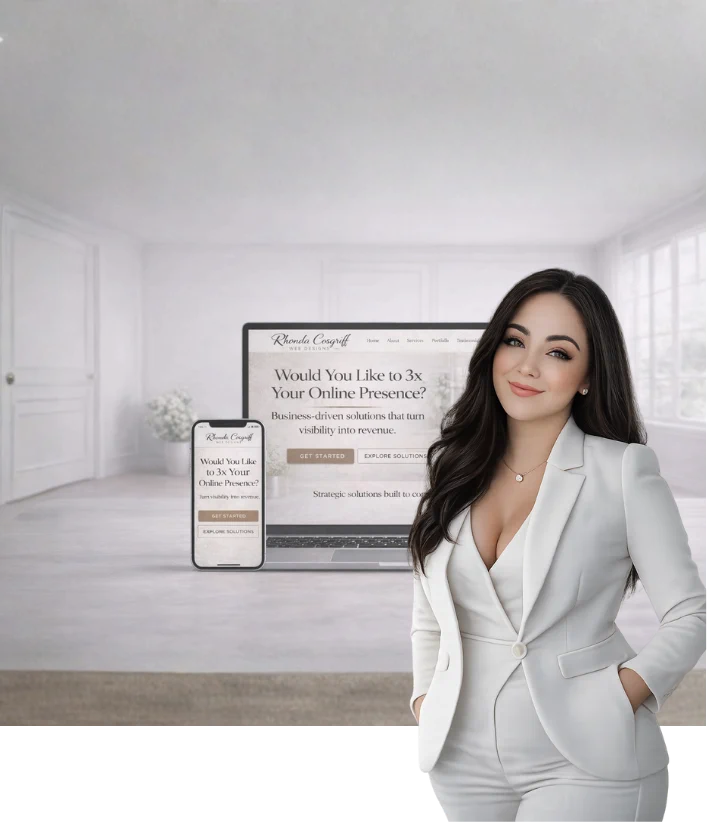
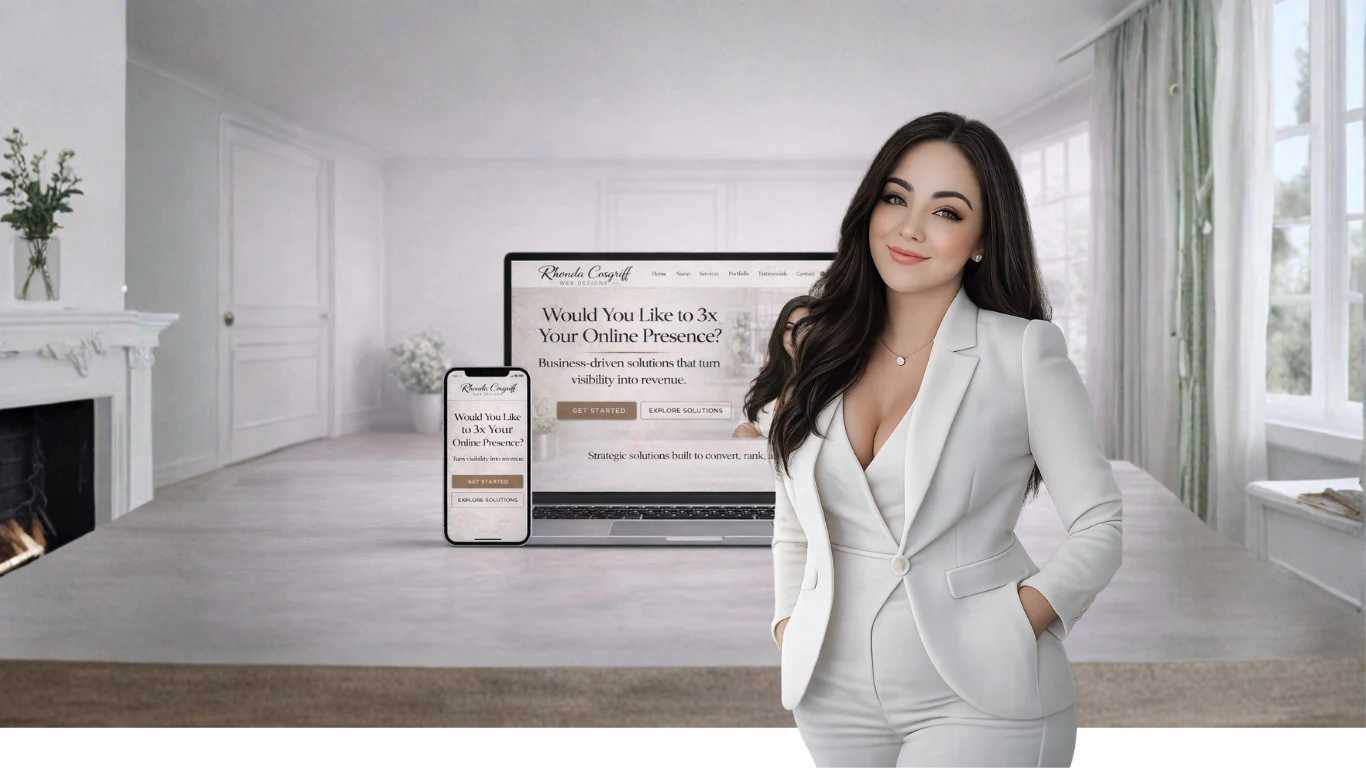
A clean, minimal portrait for a business assistant
A futuristic abstract figure for a tech-focused assistant
A calm, neutral avatar for planning and organization
👉 The image should reflect how you want the assistant to show up, not what looks trendy.
Step 2: Choose an Image Style (Human vs. Symbolic)
You generally have two strong options:
Human-Inspired Avatar
Semi-realistic or illustrated
Works well for assistants that “speak” in your voice
Feels more conversational and personal
Symbolic / Abstract Avatar
No human face
Uses shapes, light, patterns, or futuristic forms
Feels more analytical, neutral, or technical
There’s no right answer—just consistency.
Step 3: Write a Clear Image Prompt
When generating the image, clarity matters more than creativity.
Include:
Style (illustrated, realistic, minimal, futuristic, etc.)
Mood (calm, confident, intelligent, friendly)
Color palette (especially if you have brand colors)
Background (clean, transparent, abstract, soft gradient)
Example direction (not copy-paste, just guidance):
“A clean, modern AI assistant avatar with a calm, intelligent presence, neutral expression, soft lighting, and a minimal background. Professional, trustworthy, and timeless.”
Avoid:
Overly busy details
Trendy effects you’ll hate in six months
Anything cartoonish unless that’s intentional
Step 4: Keep the Image Simple and Reusable
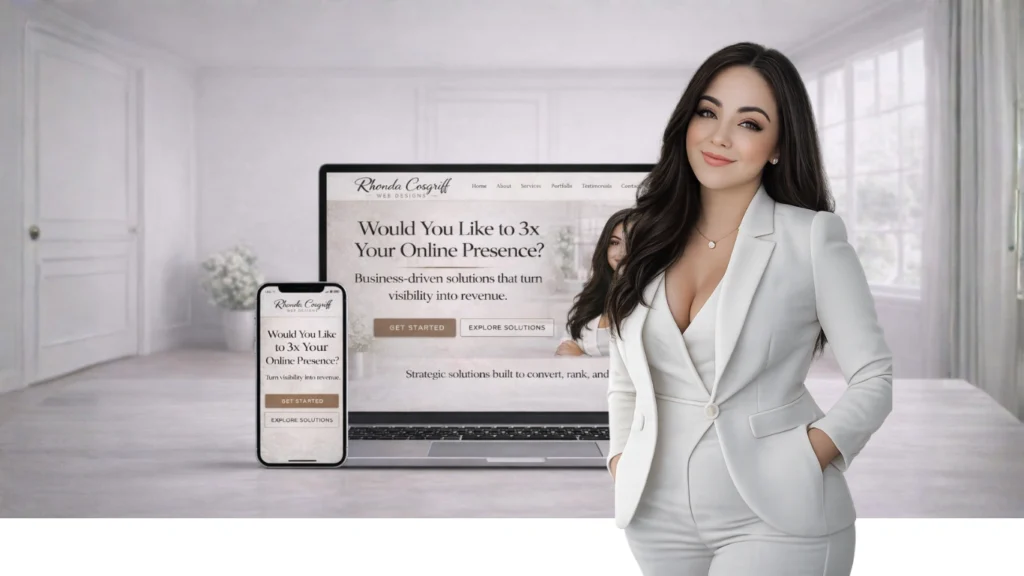
Your AI assistant image should work:
As a profile image
In documentation
On dashboards
In presentations
In future tools or interfaces
That means:
Neutral background
Clear subject
Square-friendly composition
Think utility over novelty.
Step 5: Lock It In as “The Assistant”
Once you’ve chosen the image:
Use it consistently
Don’t keep regenerating it
Treat it as part of the assistant’s identity
The goal isn’t perfection—it’s recognition.
When you see that image, your brain should immediately go:
“That’s my assistant.”
Why This Matters More Than You Think
A visual anchor:
Makes the assistant feel intentional
Helps with focus and consistency
Reinforces that this is a tool you built, not something generic
It’s a small step—but it psychologically turns your AI assistant into a system, not a toy.
Discover more from Rhonda Cosgriff Web Designs
Subscribe to get the latest posts sent to your email.